Workout Focus · Screen Lock
Your session. Uninterrupted.
A workout should be the one hour the Watch works for you and nobody else. In practice three things keep breaking it: a stray tap that changes the view, a knock on the Crown that drops you on the clock face, and a notification from another app landing mid-set.
Zorkout's Screen Lock handles the first two: long-press any workout view and the Watch turns its touch screen off — Apple's Water Lock, put to work for training. A press on the Crown then shows the unlock prompt instead of sending you to the clock face. Four Watch settings handle the third, so the whole session stays on your dashboard.
You lock it. Zorkout never locks the screen by itself.
You unlock it. Once the Crown is turned, the lock stays off until your next long press.
The Crown still turns while locked, and it moves between views. Nothing else reaches the app while locked.
01
Turning the feature on
iPhone›Zorkout›Settings›Workout Focus›Lock Screen
With the switch off, a long press on the Watch does nothing.
The switch reaches the Watch at once when the phone is in range, and on the next connection otherwise. Both devices remember it, so a session started with the phone out of reach still has the lock available.
The switch is the only setting. There is no automatic lock, no timer and no per-activity option.
02
Locking the screen
- Press and hold the screen for one second, during a session, on any workout view.
- One light click. The Watch confirms; watchOS then plays its water-drop animation.
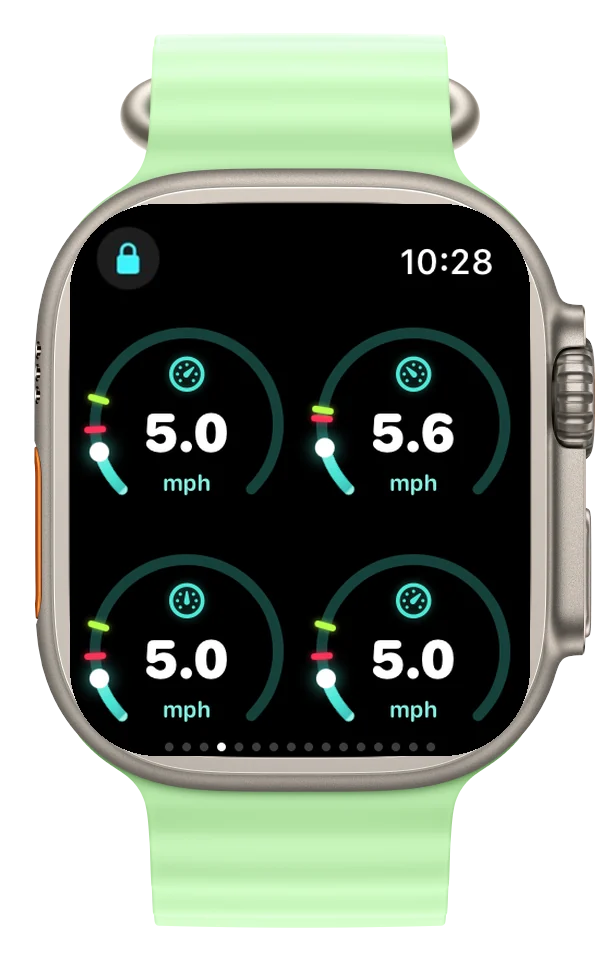
- The lock icon appears at the top left of the view. The system's own water drop shows at the top of the screen.
The lock takes only while Zorkout is on screen with a running session. That is Apple's rule for Water Lock, not the app's. If it does not take within a few seconds, the app asks again three times, five seconds apart, then gives up and removes the icon.
Locking works the same on every view, including the music view and the controls view.
03
While locked
The Crown is the only control that still reaches Zorkout. Everything on the screen waits for the unlock.
| What you do | While locked |
|---|---|
| Tap or swipe the screen | Nothing happens |
| Press the Crown | Shows “Turn Digital Crown to unlock”. You stay in Zorkout |
| Turn the Crown | Moves to the next or previous view, one click per view |
| Double Tap gesture (Series 9 and later) | Off — watchOS disables it under Water Lock |
| Music view buttons and volume swipe | Off until you unlock |
| Pause, resume or end from the Watch | Unlock first |
| Pause, resume or end from the iPhone | Works as usual |
| “Still playing?” prompt after 15 quiet minutes | Appears. Unlock to answer; the session keeps running either way |
| Zone haptics, goal celebrations, heartbeat glow | Unchanged |
| Notifications from other apps | Still shown by watchOS — see Watch settings |
04
Unlocking
Press the Crown, then turn it until the ring on screen completes. watchOS plays its water-eject sound, touch comes back, and the lock icon at the top left disappears.
The lock never comes back on its own. To lock again, long-press the screen again.
A press alone does not unlock, and neither does a short turn. Unlocking takes the deliberate turn through the full ring. A hand that presses and turns the Crown mid-rally can still unlock it; the icon disappearing is the sign, and a long press puts the lock back.
Ending the session from the Watch needs an unlock first, since the End button is on the controls view. Ending it from the iPhone needs nothing.
05
Moving between views
The workout views stack vertically, as in Apple's Workout app. The controls view sits at the top, with the elapsed time and the pause and end buttons. The dashboard views follow in the order set on the iPhone, and the dots on the right show which view you are on.
- Turn the Crown: one click per view, up or down. This works locked or unlocked, and it is the only way to change views while locked.
- Swipe up or down: the same, when unlocked.
- Nothing on a view scrolls with the Crown. The Crown is for views only. A dashboard view with more gauges than fit on the screen is cut off at the bottom rather than scrolled, so keep a view to four gauges, or two gauges and a zone bar.
The music view is the one view with a sideways gesture. Swipe right for louder and left for quieter; a swipe across the width of the screen runs the whole range. A bar along the bottom shows the level while it moves and for a moment after. The previous, play and next buttons sit under the artwork. All of this is touch, so it is for the unlocked screen only.
06
How the app keeps the lock honest
From the long press to the unlock, with the retries.
The long press asks watchOS for Water Lock; a lock that has not taken within five seconds is asked for again, three times at most, and one turned off by the Crown is let go.
Water Lock only takes while Zorkout is on screen with a running HealthKit session. That is why a request can fail, and why the app repeats it rather than assuming. A lock that was seen on and is then found off was turned off by the Crown, so the app removes the icon and does nothing more.
07
Keeping notifications out
The lock stops touches and Crown presses. Four system settings cover what it cannot — above all, other apps' alerts.
| Setting | Where | What it does for a session |
|---|---|---|
| Fitness Focus — turn on automatically when starting a workout | iPhone: Settings › Focus › Fitness | Silences calls, texts and app alerts on both devices for the length of the session |
| Return to Clock — Zorkout — Always | Watch: Settings › General › Return to Clock | Brings the Watch back to Zorkout whenever the screen wakes, however long it slept |
| Auto-Launch for media apps — off | iPhone: Watch app › Live Activities › Media Apps (watchOS 11+). Watch: Settings › General › Wake Screen › Auto-Launch Audio Apps (watchOS 10) | Stops Apple's Now Playing screen from opening over Zorkout when music starts on the iPhone |
| Digital Crown on the left side | Watch: Settings › General › Orientation | Lets you wear the Watch with the Crown toward the elbow, out of reach of the hand |
Apple's Now Playing screen looks like Zorkout's music view: artwork, a title and three buttons. Its Crown sets the volume, and it says Now Playing at the top with an AirPlay icon. If you find yourself on it while locked, that is the auto-launch above, not the app.
08
Troubleshooting
| Symptom | Likely cause | What to do |
|---|---|---|
| A long press does nothing | Lock Screen is off on the iPhone, or the switch has not reached the Watch | Check the switch, then open Zorkout's Settings on the iPhone once with the Watch in range: opening it resends every setting |
| The lock icon appears, then vanishes after about 20 seconds, and touch still works | watchOS refused Water Lock: the app was not on screen, or the session was not running | Lock again with the app on screen and the session running |
| The lock icon disappears mid-session by itself | The Crown was pressed and turned by the hand, or the system replaced the workout session and the new one refused the lock | Long-press to lock again |
| The Crown scrolls a view instead of turning to the next one | Something on the view took the Crown for a moment | The views take it back within a second and on every view change — turn once more |
| The Crown does nothing at all | Focus is elsewhere for longer than a second | Change view once with a swipe; the views reclaim the Crown on every change |
| The bottom of a dashboard view is cut off | The view holds more gauges than fit; views do not scroll | On the iPhone, keep a view to four gauges, or two gauges and a zone bar |
FAQ
Quick answers
Does Zorkout lock the screen automatically?
No. You lock it with a one-second long press on any workout view, and it stays locked until you press and turn the Digital Crown. There is no automatic lock, no timer and no per-activity option.
What still works while the screen is locked?
Turning the Digital Crown moves between workout views, one click per view. Zone haptics, goal celebrations and the heartbeat glow are unchanged. Taps, swipes, music buttons, and pause, resume or end from the Watch wait for the unlock; from the iPhone they work as usual.
How do I unlock the screen?
Press the Digital Crown, then turn it until the ring on screen completes. watchOS plays its water-eject sound, touch comes back and the lock icon disappears. The lock never comes back on its own; long-press to lock again.
Why does the lock icon sometimes disappear on its own?
Either the Crown was pressed and turned by your hand, which unlocks it, or watchOS refused the lock because Zorkout was not on screen with a running session. Long-press again with the app on screen.
Lock it, focus, forget the watch.
Workout Focus and Screen Lock ship with Zorkout for iPhone and Apple Watch. Free to download.

Requires iPhone with iOS 26.2+ and Apple Watch with watchOS 26.2+